Feature
Import a PDF and turn it into a teleprompter script
Most lecture notes, talk outlines, and briefs already exist as PDFs. AI Teleprompter imports the text and turns it into a scrolling script that follows your voice, so you read a spoken version of the document instead of memorizing it. And when the audience needs to see the material too, a screen recording of it can play as your poster video while you talk.
Last reviewed
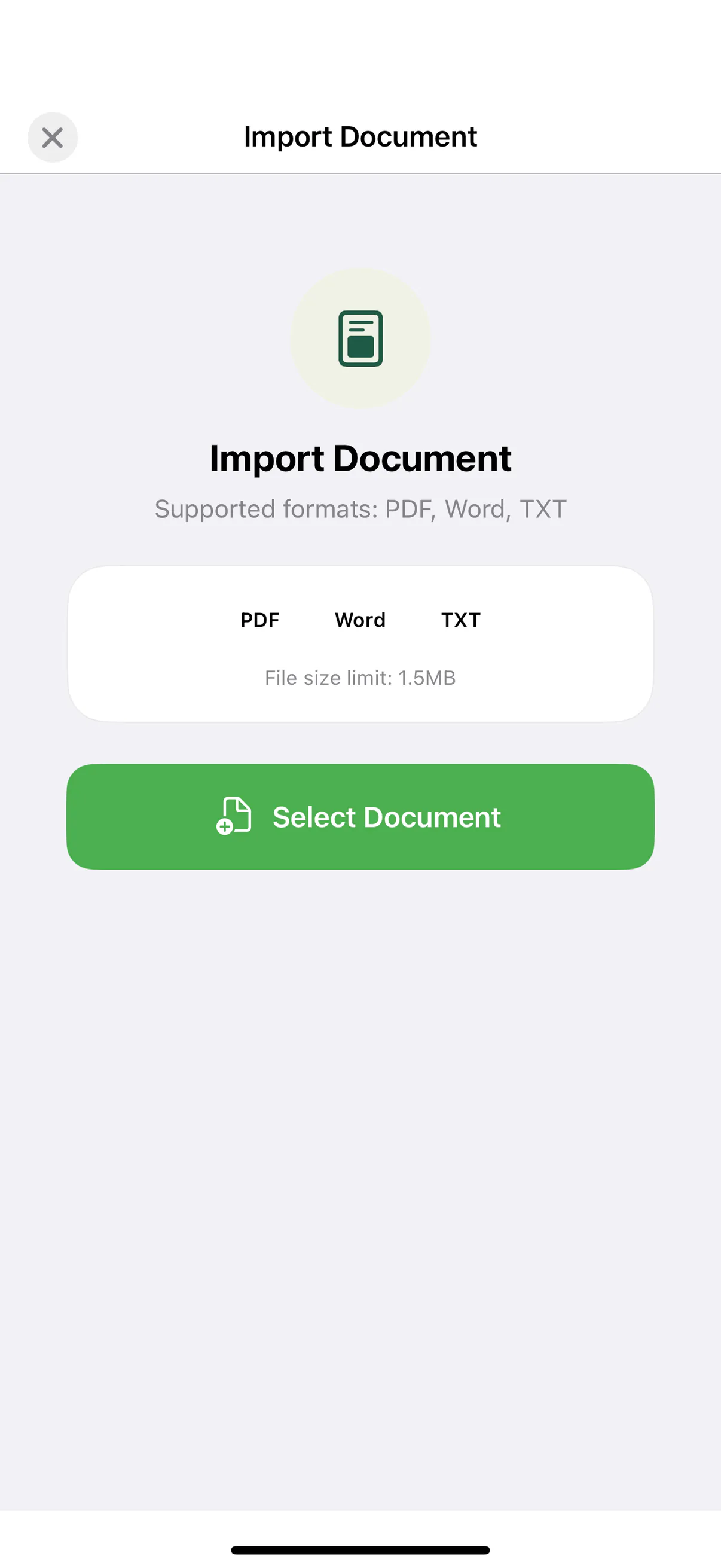
Choose what you need from the PDF
| Source | Preparation |
|---|---|
| Text-based PDF | Check extracted line breaks, headers and multi-column reading order, then edit the text into a spoken script. |
| Scanned PDF | Prepare editable text first. An image of a page is not the same as an extractable script. |
| Pages viewers should see | Prepare the visual material as images or a page walkthrough video, with a separate short script. |
From document to spoken script
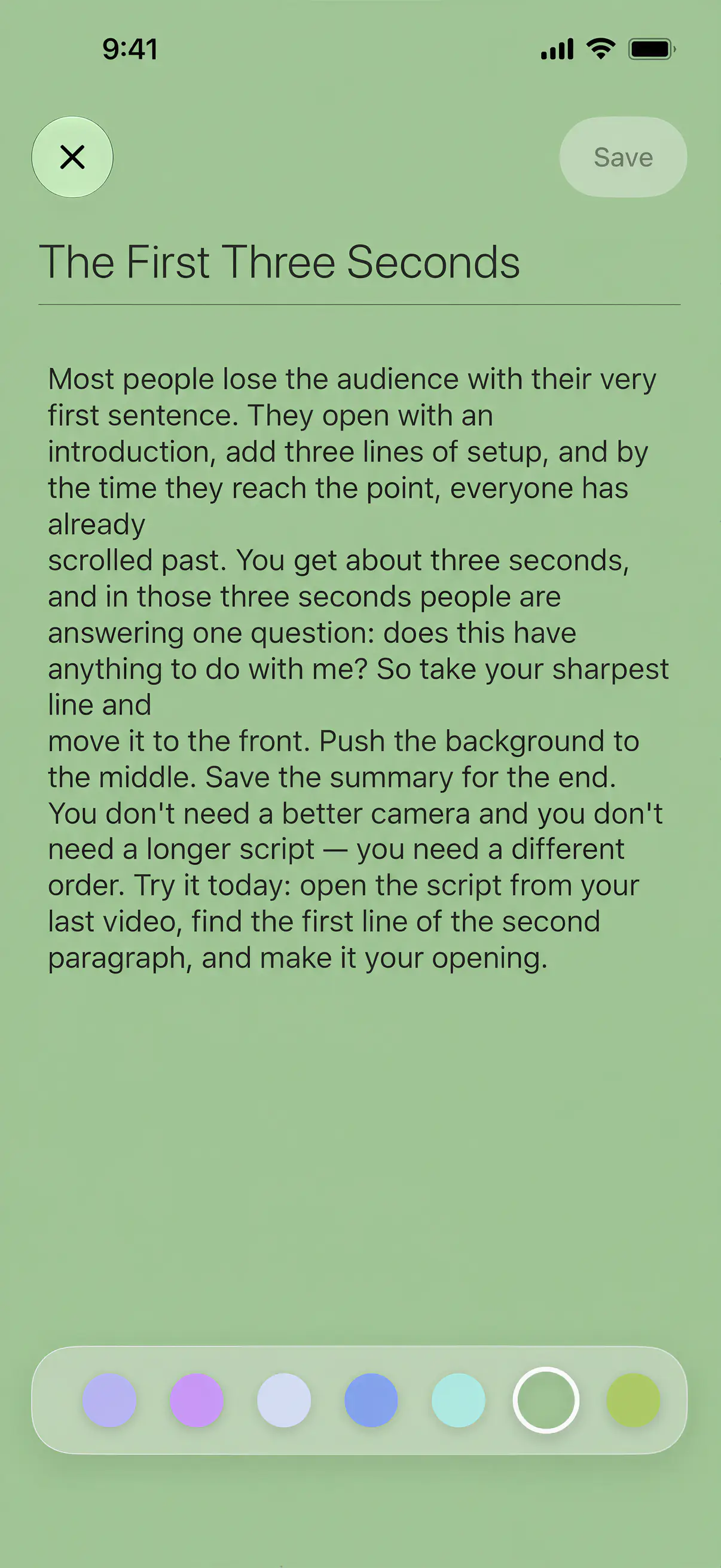
The PDF text imports into the editor, where you can tighten wording, split long paragraphs into readable lines, and color-code sections. From there it behaves like any other script, with Voice Sync, fixed-speed, or manual scrolling.
When the audience should see the material as well, pair the script with a poster video: export the deck as a video or record your screen while paging through it, then make that recording the main visual in picture-in-picture mode. Your camera bubble stays in a corner and your spoken script scrolls privately above it.

From PDF to recorded video
Import the PDF
Bring the file in from Files, Mail, or AirDrop. The text lands in the script editor, ready to trim into spoken lines.
Prepare the spoken version
Slides are telegraphic; spoken delivery needs full sentences. Edit the imported text into lines you can actually say, one thought per line.
Arrange the picture
Lead with the camera full-frame, or add a screen recording of the document as the poster video with your camera in a bubble.
Record with Voice Sync
Read while the script follows your voice. Pause to let a point land on a dense page; the script waits and the recording continues.
What to expect from imported files
Text-based PDFs import cleanly. Scanned PDFs that are just images of pages have no extractable text, so paste or retype the passages you need instead. Very large documents import best when split into sections, which also makes retakes cheaper: re-record one section, not the whole lecture.
Layout-heavy PDFs with multi-column text may need a cleanup pass in the editor, because prompting works line by line. Word and TXT files follow the same import path. The step-by-step version of this workflow is in the PDF as a teleprompter guide.
Who this page is for
Teachers and lecturers
Turn lecture notes into recorded lessons where the page stays visible and your spoken script stays private. See the course video recorder.
Presenters
Walk through a proposal or report page by page while reading your talk track. The presentation recorder page covers the full setup.
Authors and speakers
Rehearse a talk from the exact document you submitted, at conversation pace, before you ever step on stage.
PDF teleprompter FAQ
Can I use a PDF as a teleprompter?
Yes. Import the PDF and its text becomes a scrolling script you read with Voice Sync, fixed-speed, or manual control.
Does the imported PDF keep its formatting?
Script import extracts the text so you can reformat it for reading: line breaks, size, and colors are all adjustable. Prompting works best line by line, so a cleanup pass usually improves dense layouts.
What about scanned PDFs?
Scanned pages are images without selectable text, so they cannot become a scrolling script directly. Paste or type the script instead, and show the material as a screen-recorded poster video if the audience needs to see it.
Can I split a long PDF into sections?
Yes, and it is the recommended way to work. Shorter sections are easier to rehearse, and a retake only costs you one section instead of the full recording.

Record your next video with AI Teleprompter
Download on the App Store and check the available trial. Record inside the app to export your video without the prompt.