Recording workflow
Turn a PDF into a short visual explanation
Keep the PDF material your audience needs separate from the words you will read. Select one useful page or detail, prepare it as visual material, and write a short spoken explanation. In AI Teleprompter, the prompt supports your delivery while the camera bubble and selected material form the video. A scanned page needs different preparation from a text-based PDF.
Last reviewed
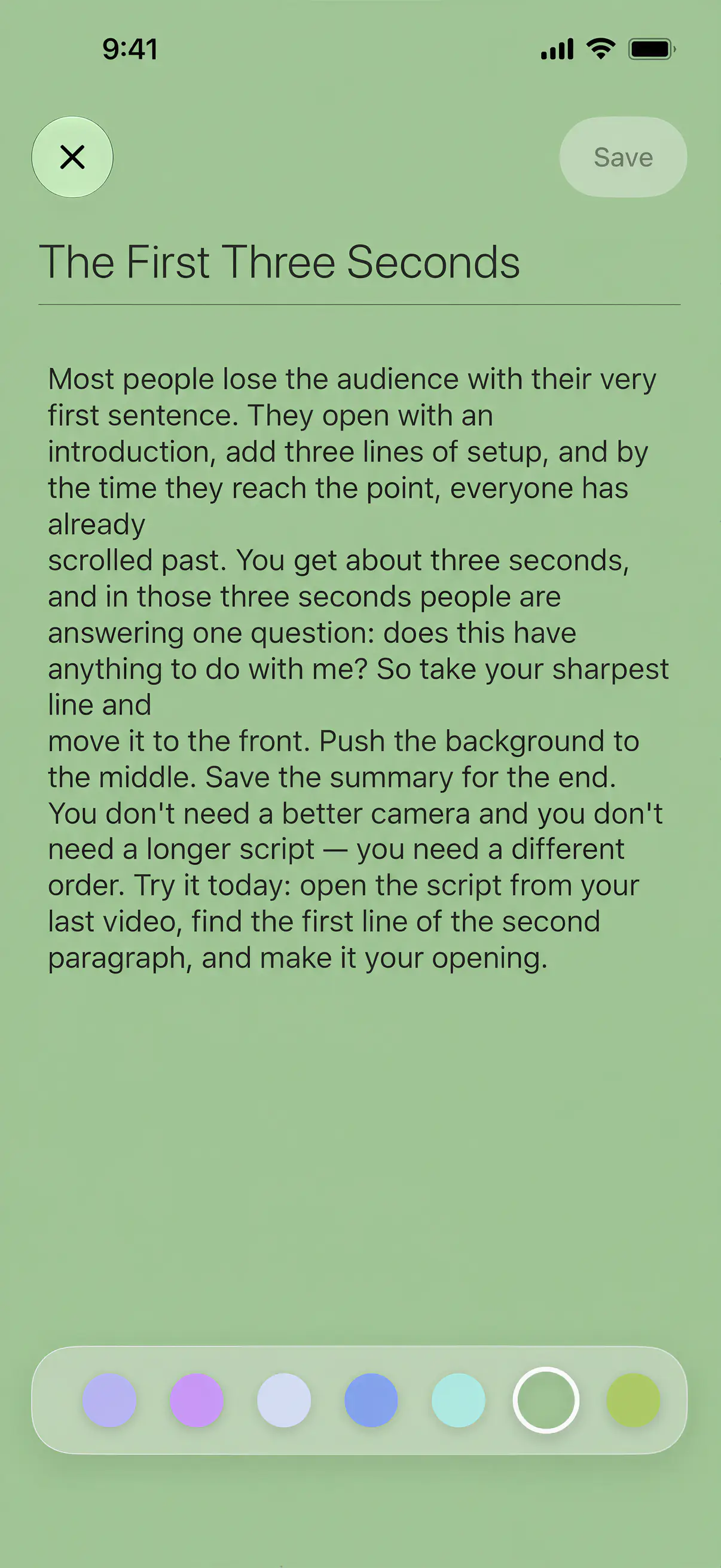
Two inputs, different jobs
| Input | Purpose | Preparation |
|---|---|---|
| Spoken script | What you privately read | Extract selectable text, remove page furniture and rewrite it as speech. |
| Visual material | What the audience sees | Prepare the relevant image or page walkthrough video. Check small text on a phone. |
| Scanned document | A picture of a page | Prepare editable notes separately; do not assume direct text extraction. |
Explain one page first
Choose the takeaway
Write one sentence describing what viewers should learn. Remove unrelated pages from this short explanation.
Prepare readable material
Crop or prepare the relevant visual so the key detail is legible. Keep your unmodified source file separately.
Write a spoken path
Introduce the page, explain one detail and state what it means. Do not read every label while covering it with your face.
Record and inspect
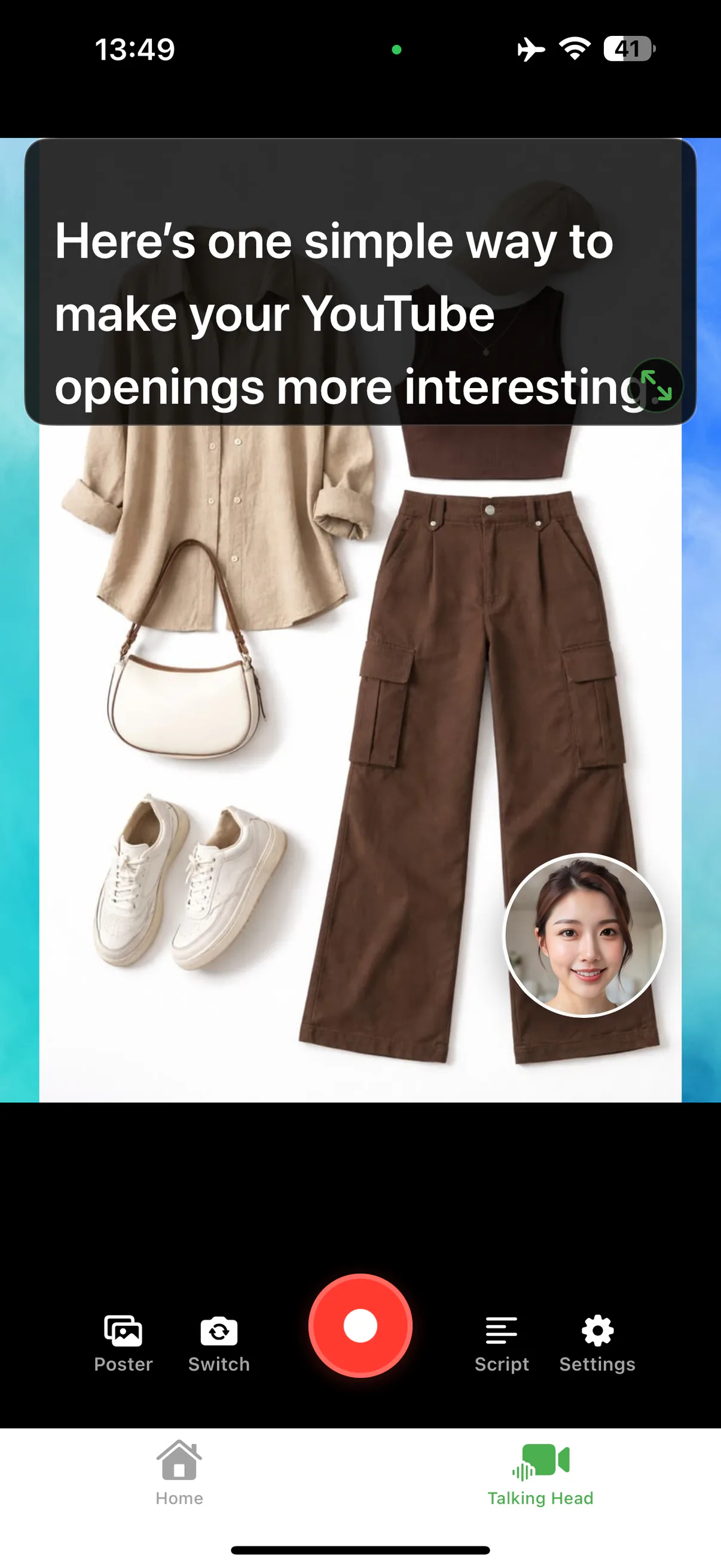
Place the camera bubble away from the focal area. Export a short sample and play it on the device size your audience will use.
Example: explain a chart without reading the report
Start with “This chart compares the two options.” Point viewers to one difference, then explain its implication in plain language. Keep the actual values from your source; do not manufacture numbers to make the story stronger.
What this workflow does not assume
It does not require native slide-deck playback or claim that every scanned PDF imports as text. Use the PDF preparation guide for inputs and the course recording workflow when several explanations become a lesson.
Prepare your recording in AI Teleprompter
Questions about explaining a document
Can I import the PDF directly?
Yes. PDF, Word, and TXT files import as scripts, and pages can also be used as the visual you present on camera. The two jobs are separate: one is what you say, the other is what the viewer sees.
Should I read the document aloud?
Rarely. A recorded explanation works better when the script says what the page means and the page carries the detail. Reading a dense page aloud is the fastest way to lose a viewer.
How much of a page fits on screen?
Less than you expect once a camera bubble sits on top of it. Crop to the one chart or paragraph you are explaining and change the crop between sections.
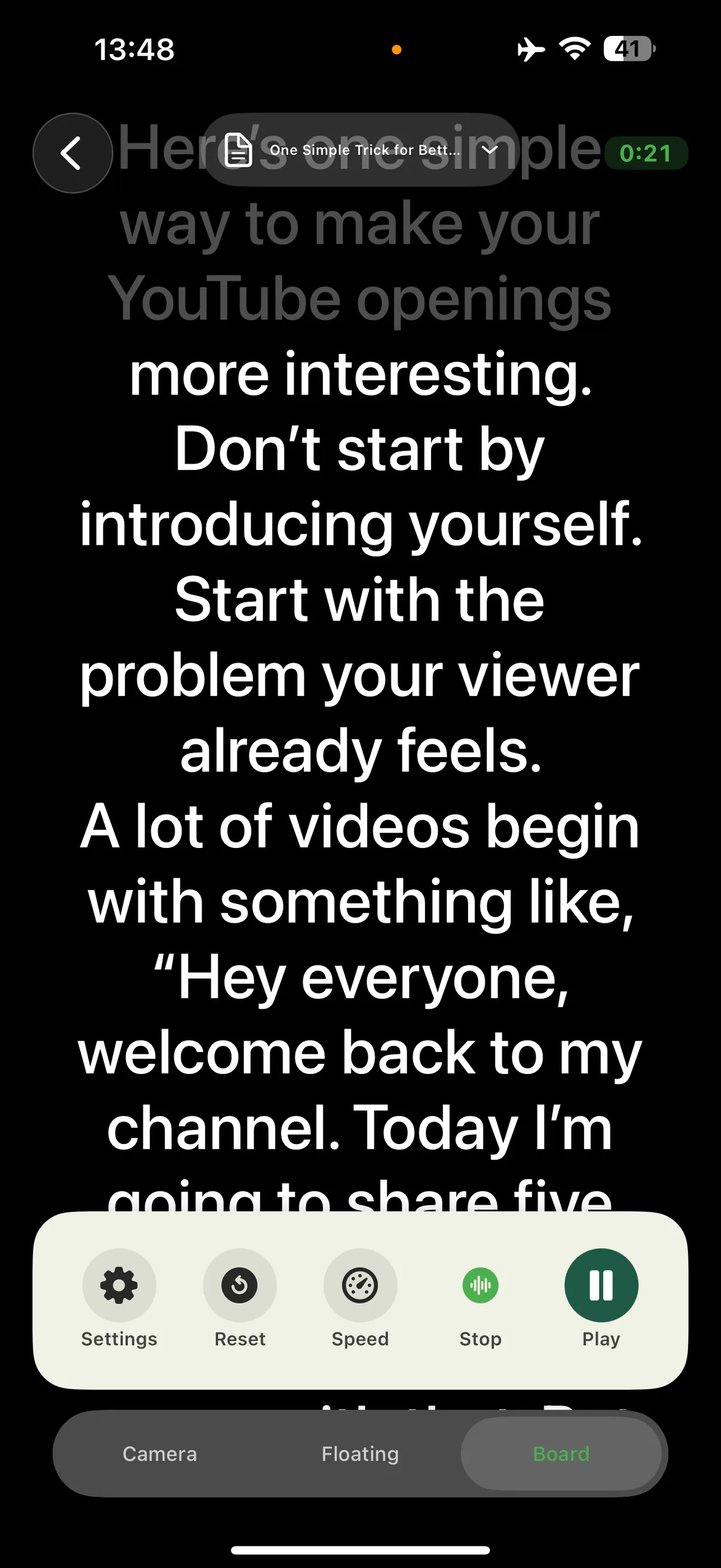

Record the first part of your explanation
Bring one spoken script and one visual. Record, save and inspect a short sample before the full session.