Problem guide
Check whether your recording includes the script
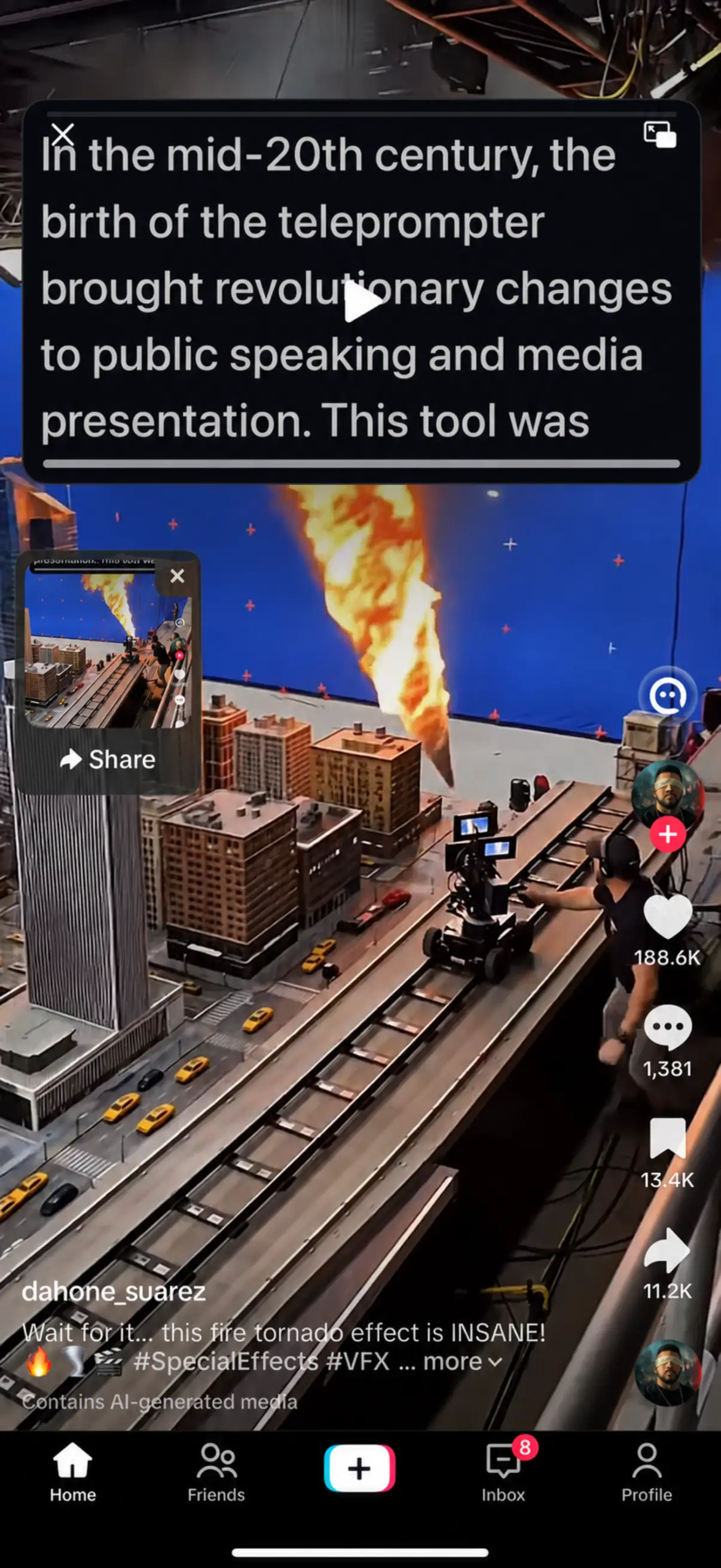
A prompt can be visible to you without appearing in an in-app camera export. Screen recording is different: it can capture the text displayed on your screen. Before filming or sharing anything private, make a short sample with the same app and capture method you intend to use, then inspect the saved video or the viewer’s screen.
Last reviewed
Three capture paths, three checks
| Method | What to verify |
|---|---|
| AI Teleprompter in-app export | The prompt is excluded from the exported camera and selected visuals. Preview the saved sample. |
| Another camera or streaming app | Check what that app captures, rather than assuming every overlay stays hidden. |
| System recording or screen sharing | Visible prompt text may be captured. Review the recording or recipient-side view. |
Run a privacy check before the real take
Use a dummy script
Use generic words instead of client information or private notes. Keep the intended window size and position.
Record the actual setup
Use the same device, app, orientation and capture mode as the planned session. An in-app test does not validate a separate screen-sharing tool.
Check the output
Play the saved file, or inspect the audience view in a meeting. Look at all screen edges as well as the centre.
Change the workflow if needed
Use in-app recording for a clean camera export. If you must share the screen, keep private notes on a separate device or outside the captured area only when that capture boundary is verified.
Floating is a layout feature
A floating window keeps words nearby. It is not a universal privacy filter. After an OS or recording-app update, repeat the sample if your work depends on the prompt staying out of the output.
Prepare your recording in AI Teleprompter
Questions about what the camera keeps
Does the teleprompter text appear in the finished video?
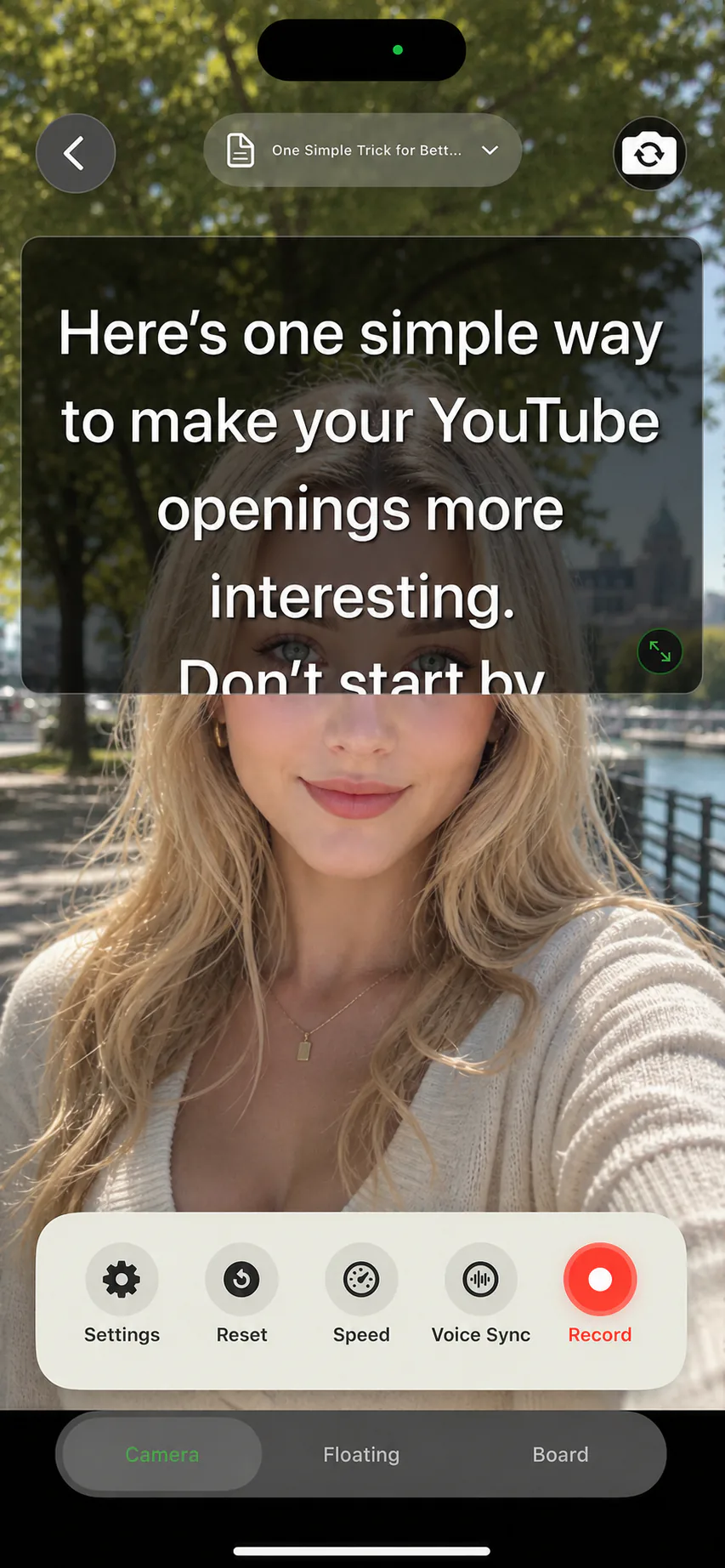
Not in an in-app recording. The export is composed from the camera feed, so the script layer is never written into the file. A screen recording is a different capture path: it records everything drawn on the display, prompt included.
How do I check before an important take?
Record ten seconds, open the result in Photos, and watch it full screen. What you see there is what your audience sees. Repeat the check once per capture method rather than once per script.
Does a floating prompt show up on a live stream?
A floating prompt sits on your screen, so anything that captures the screen captures it too. That covers most live-stream and screen-share paths. Only in-app camera recording keeps the prompt private.
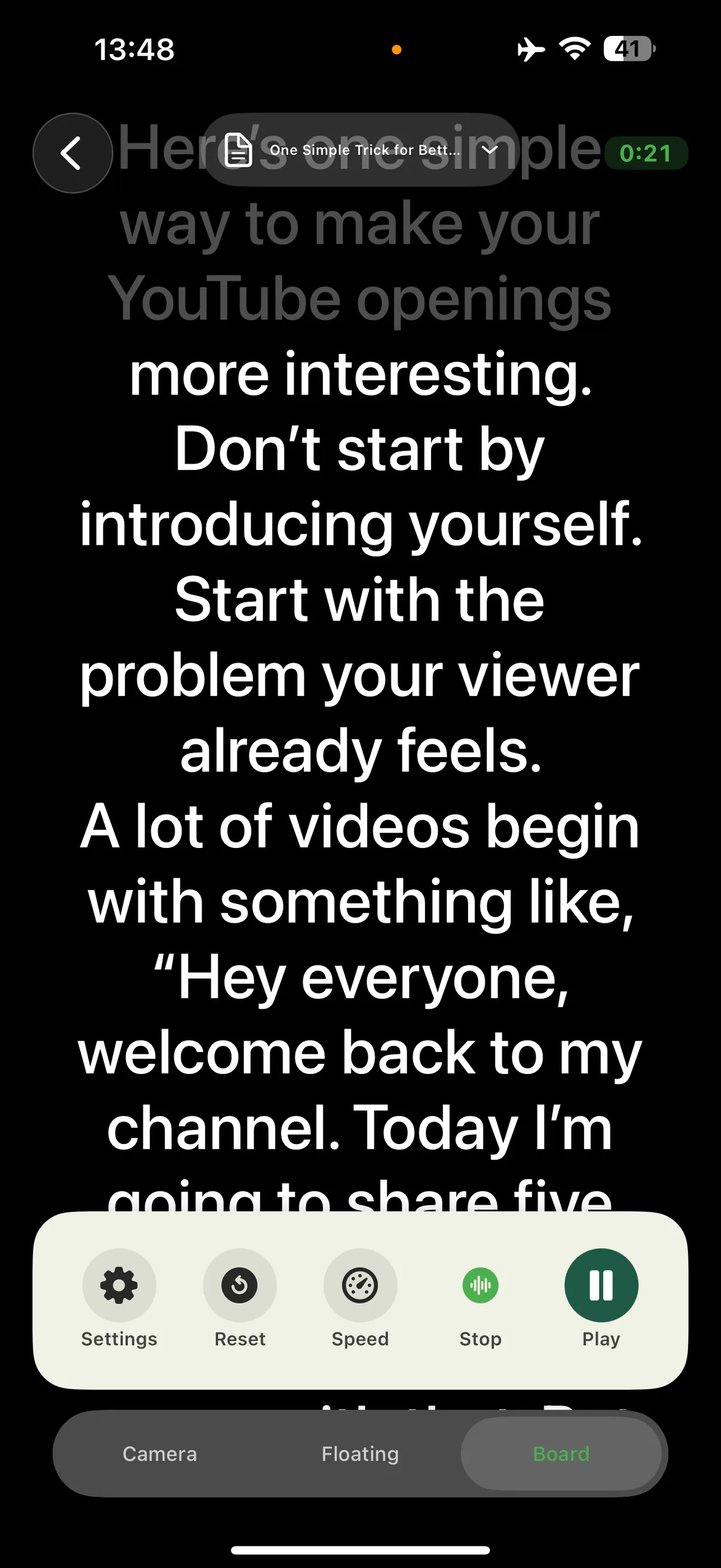

Try a short take with your own script
Complete one recording that matches your task before choosing a plan. Check current device requirements and purchase terms on the App Store.